# Personal use: read your own data with Meu Pluggy
If you are an individual who wants to read **your own** bank accounts with code — a personal finance script, a spreadsheet, an app only you use — the path is **Meu Pluggy** plus the **MeuPluggy connector**. It is free, needs no due diligence and does not expire with the trial. It is for personal use only (up to 5 connections, no commercial use).
Companies building a product for their users follow the regular integration instead ([Quick start](/docs/quickstart)) and talk to [Sales](/docs/get-started/contact).
The official guide from Meu Pluggy is at [meu.pluggy.ai/api-guide](https://meu.pluggy.ai/api-guide). This page shows the same four steps with the Pluggy Dashboard screens.
## Step 1 — Connect your banks in Meu Pluggy
Sign up at [meu.pluggy.ai](https://meu.pluggy.ai) and connect your banks there. This is where each bank is authorized (CPF, the bank's app, approval). **Each bank is authorized separately**, and a bank you add later needs its own authorization.
## Step 2 — Add the MeuPluggy connector in the Dashboard
1. Sign in to the [Pluggy Dashboard](https://dashboard.pluggy.ai) **with the same account** you use in Meu Pluggy.
2. If you use a custom connector selection, make sure **MeuPluggy** is switched on: **Customization → Connectors**, search `MeuPluggy` and open the **Direct Connectors** tab of the *Personal* group ([how](/docs/guides/dashboard-connectors#1-choose-which-connectors-pluggy-connect-shows)).
3. Open **Applications → your application → Demo** and click **Connect Account**.
4. In the widget, choose **MeuPluggy** — not your bank, and not the Sandbox — and sign in with your Meu Pluggy account.
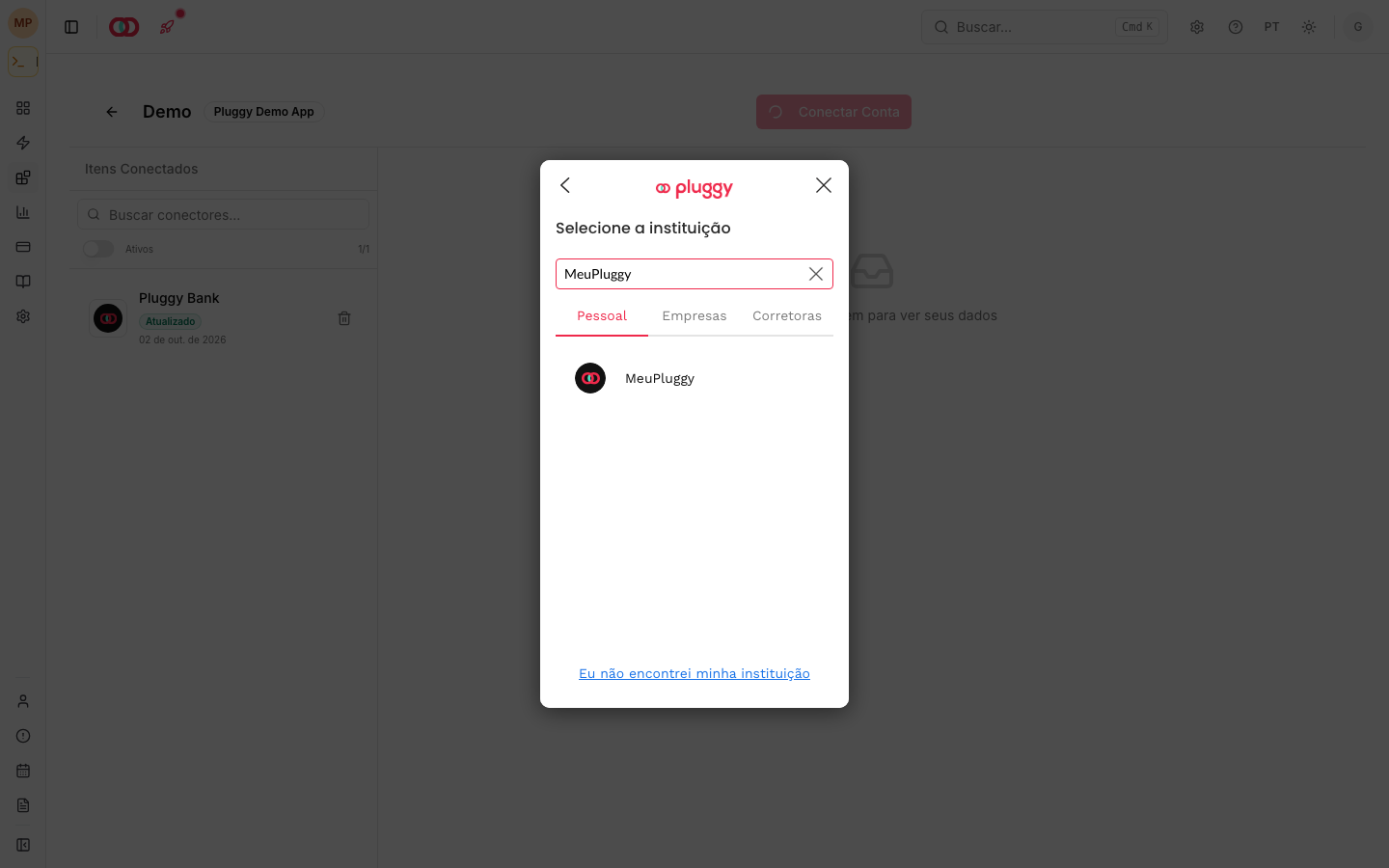
Each bank you connected in Meu Pluggy becomes an **item** in this application. These items mirror the Meu Pluggy connection: they reflect every update automatically (Meu Pluggy refreshes every 24 hours), they cannot be updated manually, and they send webhooks like any item.
If the Dashboard asks for your CPF and a bank approval again, you picked the bank's own connector instead of **MeuPluggy**. Go back and choose MeuPluggy.
## Step 3 — Copy the itemId and your credentials
- **itemId:** on the same **Demo** page, click the item in **Connected Items** and copy its id ([how](/docs/guides/dashboard-connectors#3-find-the-itemid)). Keep it — `GET /v2/items` is not available for Meu Pluggy accounts.
- **Client ID / Client Secret:** the Client ID is in **Applications**, on your application's row. The Client Secret is shown only once, when it is generated — if you didn't store it, generate a new one on the application's page ([how](/docs/guides/dashboard-connectors#4-client-id-and-client-secret)).
## Step 4 — Read your data
```bash
# 1. Exchange your credentials for an API key
curl -X POST https://api.pluggy.ai/auth \
-H "Content-Type: application/json" \
-d '{"clientId": "", "clientSecret": ""}'
# → { "apiKey": "..." }
# 2. List the accounts of one connection
curl "https://api.pluggy.ai/accounts?itemId=- " \
-H "X-API-KEY: "
# 3. Transactions of one account (its id comes from step 2)
curl "https://api.pluggy.ai/transactions?accountId=" \
-H "X-API-KEY: "
```
The SDKs ([Node, Python and more](/docs/developer-tools/server-sdks)) make the same calls.
## The authorization expires after one year
When you sign in to Meu Pluggy in Step 2, you authorize your application to read the connections you have there. That authorization is what the MeuPluggy items read through, and it **lasts one year** from the moment you grant it. Each bank connection inside Meu Pluggy keeps its own consent with the bank; this one is separate and sits on top of them.
You can see when it ends on the item itself: [GET /items/\{id\}](/reference/items-retrieve) returns it as `consentExpiresAt`.
### What happens when it expires
- **Reads stop.** Accounts, transactions and the other lists of that item come back empty.
- **The next update fails with a login error.** The item moves to `LOGIN_ERROR` with the code `USER_AUTHORIZATION_EXPIRED`, and the `item/error` webhook fires. If you listen to webhooks, that is your signal.
Until that next update runs, the item can still show its last status — `UPDATED`, with no error — while the reads come back empty. Check `consentExpiresAt`: an empty read with a past date means the authorization lapsed, not that your bank connections stopped syncing.
### How to renew it
Repeat Step 2: open **Applications → your application → Demo**, click **Connect Account**, choose **MeuPluggy** and sign in with your Meu Pluggy account. Granting it starts a new one-year period.
An update triggered by the API or by the automatic sync cannot renew it, because nobody is there to sign in: it ends in `USER_AUTHORIZATION_EXPIRED` as above.
After authorizing again, check which item your data is on before you continue reading. If you store transactions on your side, reconcile them by their own ids rather than assuming the item kept its id.
Deleting your Meu Pluggy account ends the authorization immediately.
## Testing without real data
To try the flow without your own accounts, use the **Sandbox** connector with its [test credentials](/docs/guides/sandbox). Your Meu Pluggy connection is real data, never a sandbox.
## Questions
Questions about personal use go to the community on Discord: [discord.com/invite/EanrwJADby](https://discord.com/invite/EanrwJADby).